Rule Finalization
(2) About Rule
Fill each of the following fields:
-
Name: A short descriptive title for the rulenoteWhen naming the rule, it is helpful to be descriptive about what is generating the rule (data source) without being too verbose as long rule names get truncated from view when alerts trigger.
- Example:
[Sysmon] MSHTA.exe network connection
- Example:
-
Description: Be verbose, as this is the first thing an analyst investigating the alert will look at to understand why the event is worth investigating -
Default severity: Set based on your assessment of the activity that the rule is trying to detect:Low: Most likely to be a false positive or benign activity. Has minimal impact if it is a true positive.Medium: Likely to be benign activity, but can have some impact if it is a true positive.High: Unusual occurance that may be benign, but still requires urgent attention when the alert is fired.Critical: Rare occurance that is almost always malicious and requires immediate attention whenever the alert is fired.
-
Tag: Add tags based on the following 262COS rule tagging schema, heavily following the Sigma rule tagging specification:- First, always add the
262COStag at a minimum to identify the organization that created the rule
Category Example Tags MITRE ATT&CK Tactics - attack.initial_access
-attack.execution
-attack.persistence
-attack.privilege_escalation
-attack.defense_evasion
-attack.credential_access
-attack.discovery
-attack.lateral_movement
-attack.collection
-attack.exfiltration
-attack.command_and_control
-attack.impactMITRE ATT&CK Techniques - attack.t1090
-attack.t1027.001Data Source - source.sysmon
-source.zeek
-source.wineventOperating System - os.windows
-os.linuxEvent Type - type.host
-type.network - First, always add the
(2) About Rule - Advanced Settings
Expand the Advanced Settings tab of the About Rule section and fill in each of the following applicable fields:
-
False positive examples: A list of benign scenarios/activities that may trigger the alert to fire
-
MITRE ATT&CK threats: Tactics/techniques that the rule is intended to detect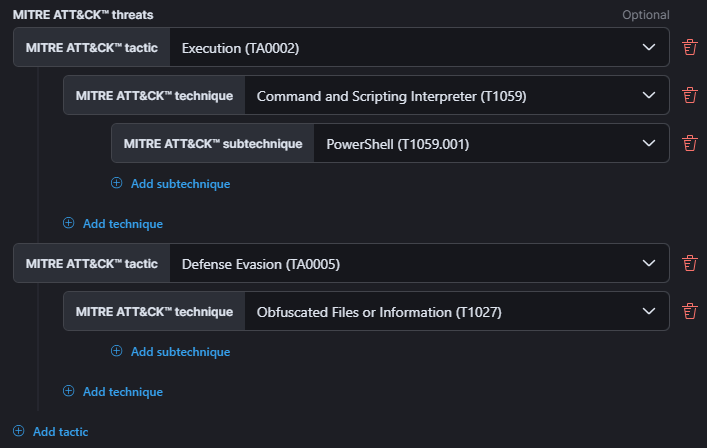
-
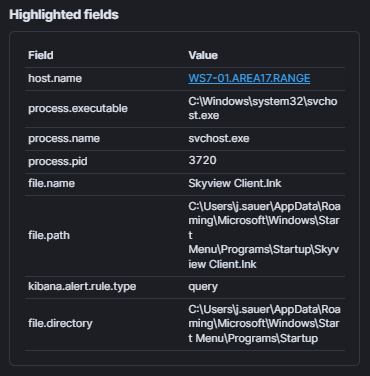
Custom highlighted Fields: Add relevant fields that you want an analyst to immediately see when clicking on the alert Example: This is what an analyst could see when initially clicking on an alert to view the details:
-
Investigation Guide: Add any follow-on actions that an individual responding to this alert may need to follow (formatted in markdown)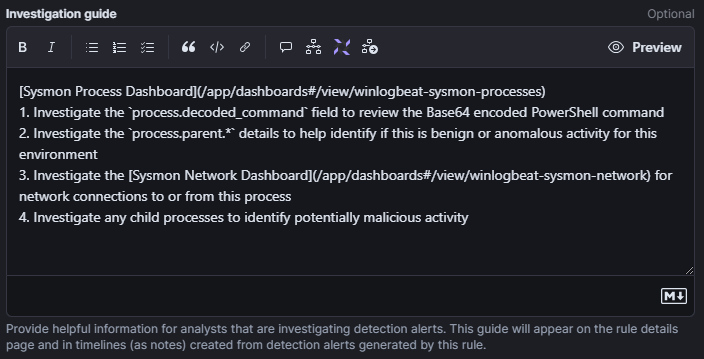
-
Author: Add the name of each individual that contributed to the creation of the rule
-
Timestamp override: Set to theevent.ingestedfield so that rules will be queried against the time data was ingested and not when it occurred – this will ensure that even old data that has been retroactively ingested will be queried for alerting
(3) Schedule Rule
Populate the following Schedule rule fields:
-
Runs every: The default of5mis fine. This is the frequency at which this rule runs, and will query data within this previous window of time.
-
Additional look-back time: The default of1mis fine. This adds time to theRuns everyvalue so that any delayed or missing logs from the previous time period are also queried if they were not included in the previous run of this rule'’'s query.
(4) Rule Actions
No configuration is required in this section, as the default action will always trigger an alert.
Click on the Create & enable rule button to save the rule and run it.
